
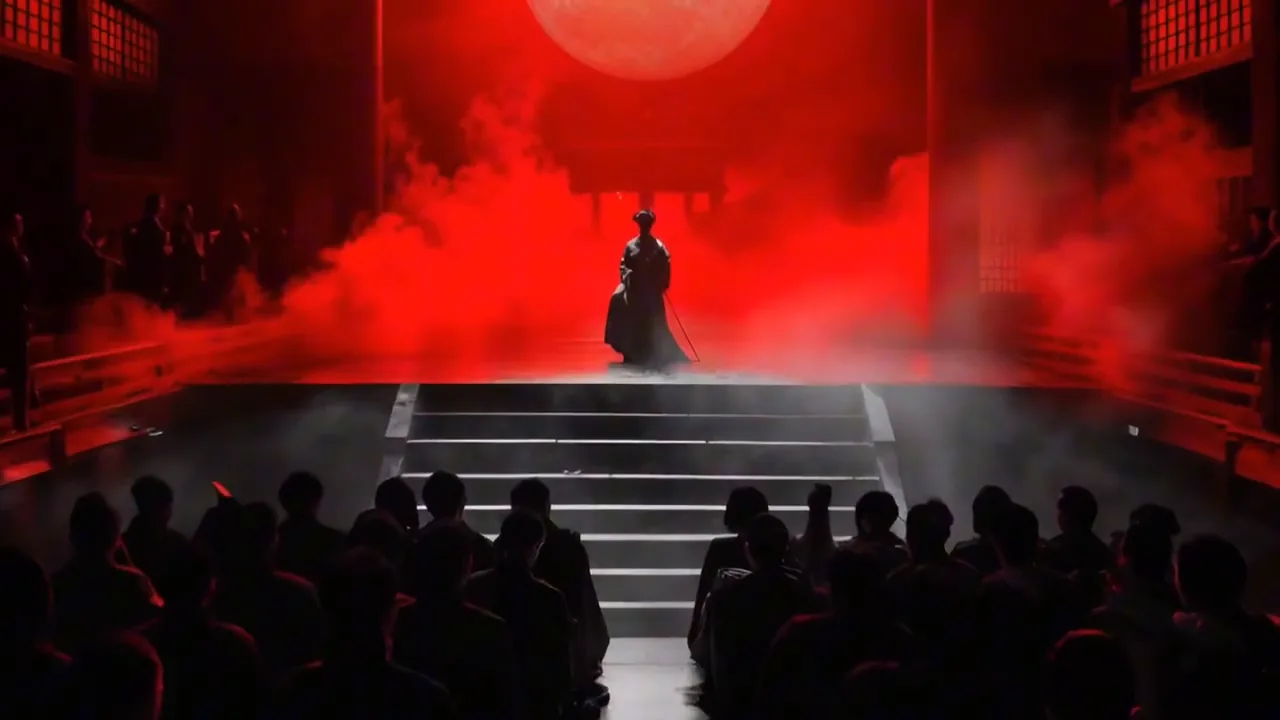
Establish the starting look
Describe the subject, lighting, and environment in text, or supply an image in a supported image-to-video mode. Make the focal point clear before adding movement.
Once you know the look of a scene, decide how it should move. On Nano Banana 2.1, use a video model to explore product reveals, character actions, and camera movement from text or a supported starting image.
Give the image a direction
The AI video generator uses the selected video model. Plan the starting appearance, the action, and the camera together so that the clip serves the same creative brief as your images.
Describe the subject, lighting, and environment in text, or supply an image in a supported image-to-video mode. Make the focal point clear before adding movement.
Say what changes during the shot: a person turns, fabric lifts, or light crosses a surface. Give the action a clear beginning and direction.
Use a fixed frame, a gentle approach, or a following shot to guide attention. Explain the camera movement separately from the subject's movement.
State which product details, character features, or parts of the composition matter throughout the shot. Review them across the full clip when it finishes.
From images to moving scenes
Use these still images as creative references for a scene's appearance. Add action and camera direction in your video prompt to explore how that visual idea could move.
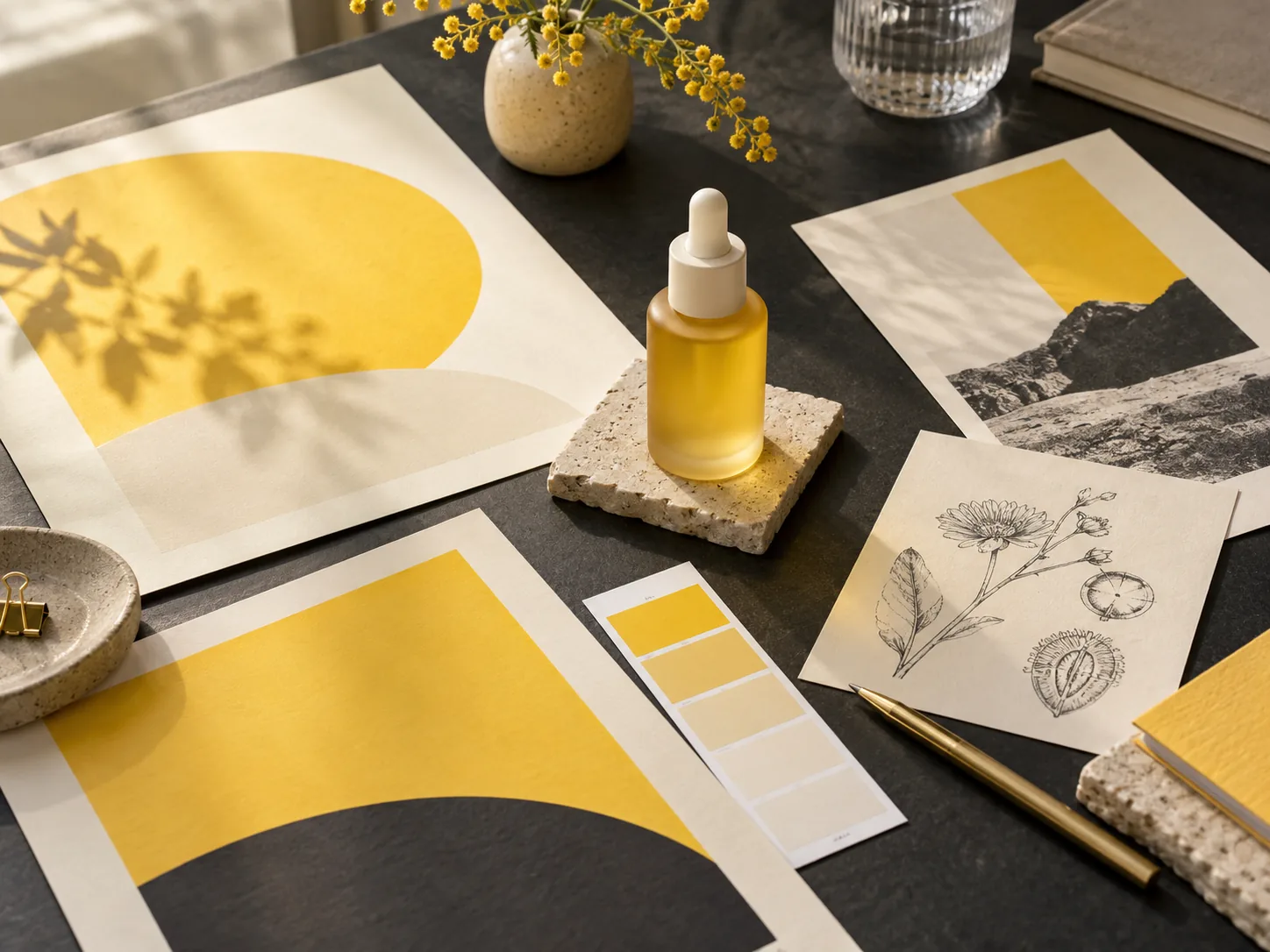
Plan a slow move across the yellow skincare bottle, color swatches, posters, and botanical sketches. Choose which detail the camera should settle on, and describe the lighting you want to preserve.
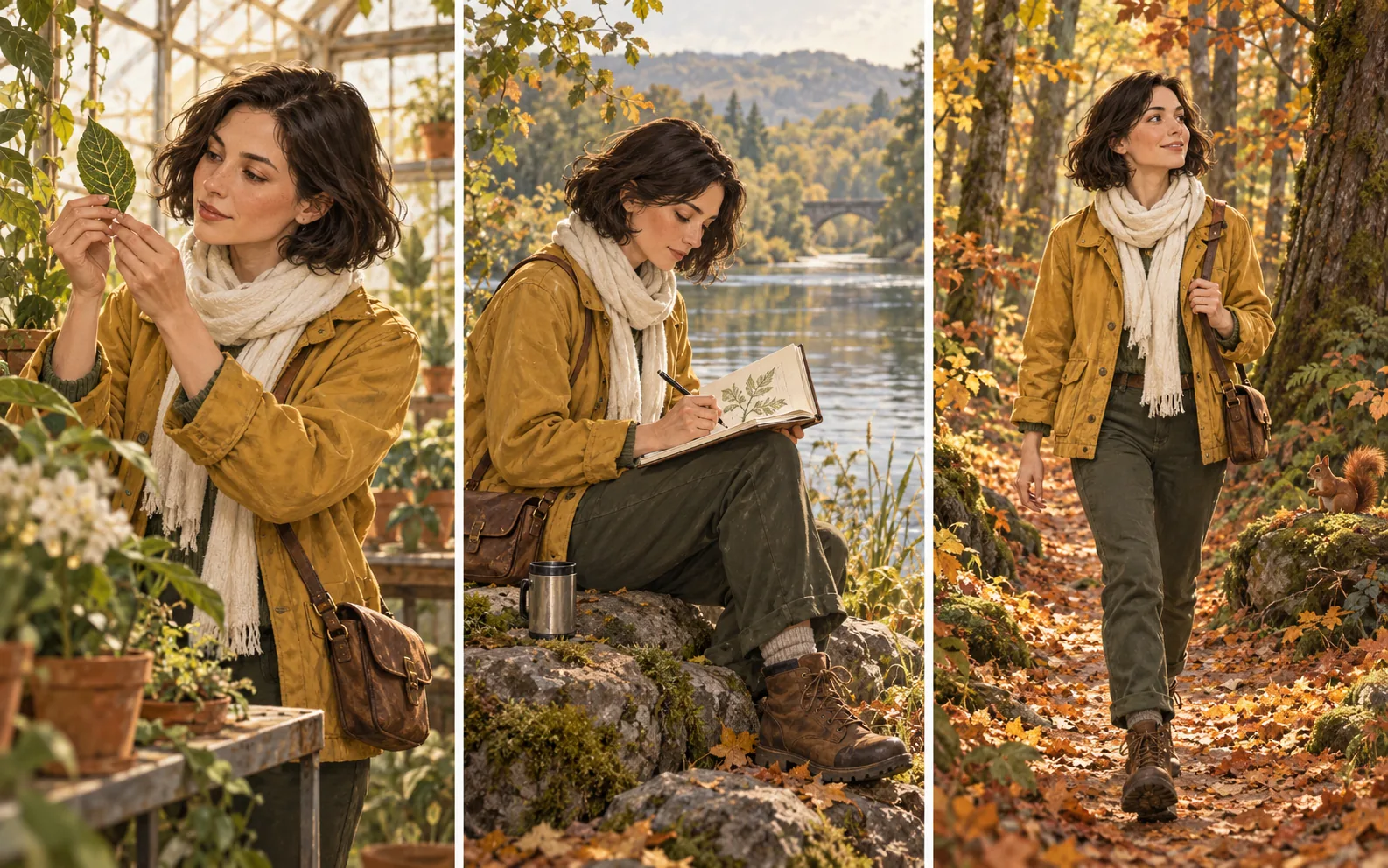
Use the greenhouse, lakeside, or autumn forest as the setting for a small gesture, such as examining a leaf or turning a sketchbook page. Describe the observer's mustard jacket, ivory scarf, and short brown hair alongside the movement.
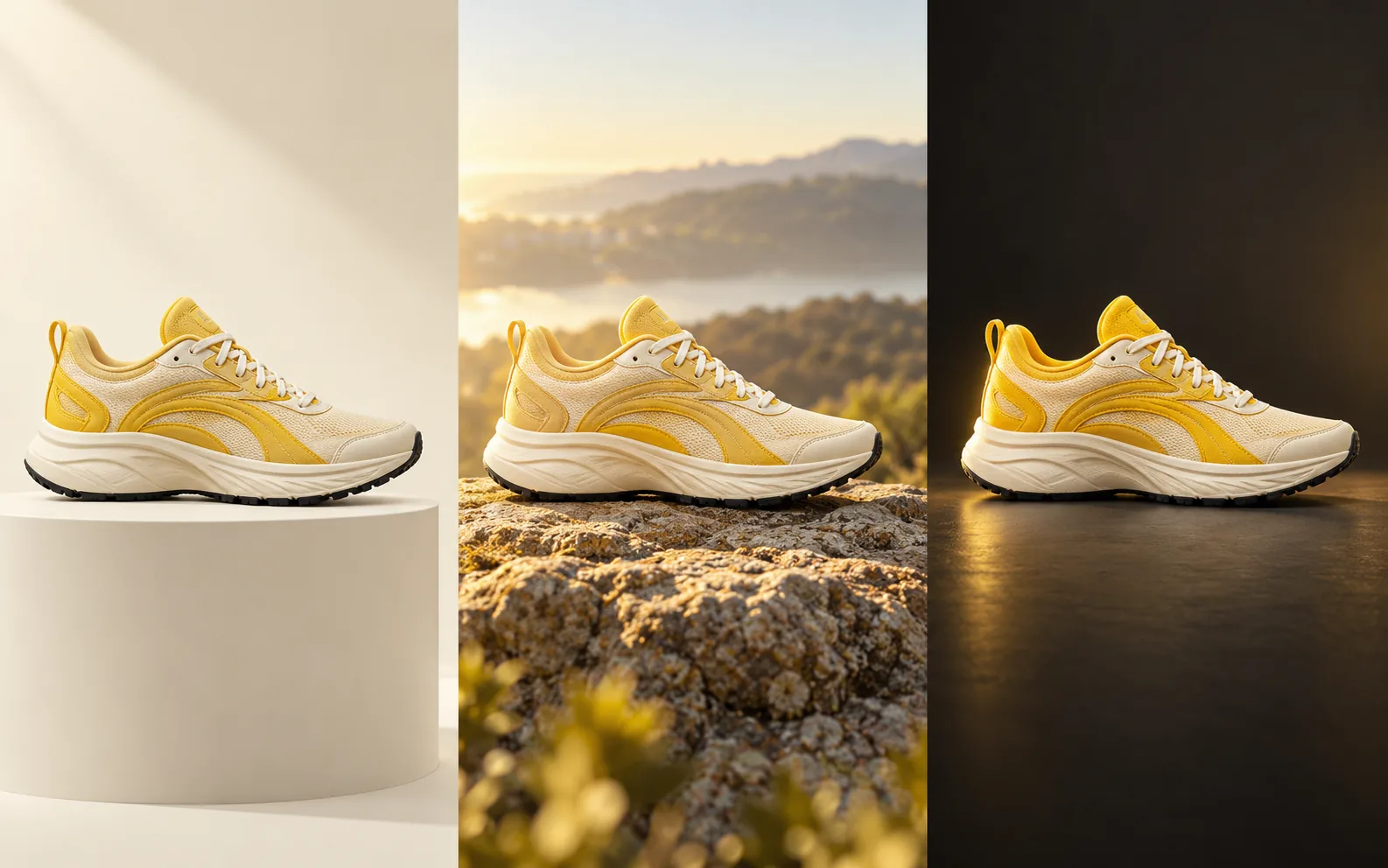
Choose the studio plinth, outdoor rock, or dark backdrop as the starting setting. Describe a gentle camera move around the yellow-and-white shoe and name the shape, material, and sole details that should stay visible.
Direct a video task
A short scene brief makes it easier to see whether the generated motion supports your idea.
01
Describe a new scene in text, or prepare an image for a video mode that supports it. Check the subject and composition before submitting.
02
Explain what the subject does and how the camera moves. Include the visual details you want to preserve through the shot.
03
Review the supported input mode, duration, aspect ratio, and other available settings. Check the displayed credit cost and sign in to generate.
04
Watch for changes in the subject, motion, and framing from beginning to end. Adjust the relevant instruction before generating another version.
Video workflow questions
Understand the role of the video model and how to prepare a clip from an image-focused project.
The video model selected in the generator produces the clip. Choose a supported input mode, then review its duration, framing, and credit cost before generating.
Use text-to-video to explore a scene's appearance and movement together. If you already have the composition you want, choose a supported image-to-video mode and supply that picture as the starting input.
Begin with a main subject, a clear action, and a camera direction that supports it. If the scene is hard to follow, reduce competing movements or scene changes in the next prompt.
No. Input modes, clip durations, resolutions, reference requirements, and audio controls depend on the selected video model. Review the options shown in the generator rather than assuming a setting carries over from another model.
Watch the complete result for unwanted changes to the subject, flickering details, awkward movement, and framing. If text or a product label matters, check it throughout the clip. Review audio too when it is part of the output.
Video creation on Nano Banana 2.1
Bring a starting scene and an action to the AI video generator. Use the result to decide how your visual story should unfold.